How to Stream to Multiple Destinations
How can you stream to your Facebook profile, page, and group at the same time? A lot of people have been asking me this question. And I always say that you can do this with software. There are many...

How can you stream to your Facebook profile, page, and group at the same time? A lot of people have been asking me this question. And I always say that you can do this with software. There are many pieces of software out there that do this kind of thing, but there's only one that's the best. And this software is, of course, Restream.
Watch this video to learn how to stream to multiple destinations with Restream. Or, read the rest of this post.
Last week, I published a video and a post about Restream. It's actually a full guide, I can show you the ropes and
So, this post is a really straightforward guide on how to live stream in multiple places with Restream. The first thing you want to do is log in to Restream. If you don't have an account yet, create one using my affiliate link (check it out at the end of this post). You get a bit of a discount if you do this.
Adding Facebook Page, Profile, and Groups on Restream
Let’s go through the process of adding the Facebook profile, page, and groups first.
- Log in to your Restream account.
- Select the channel that you want to connect to.
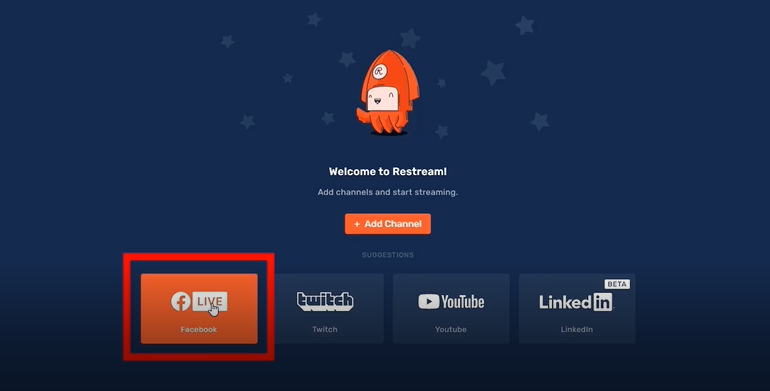
- Log in to your Facebook account.
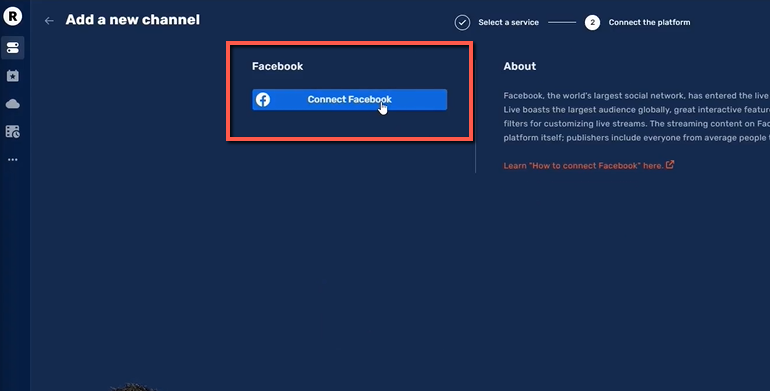
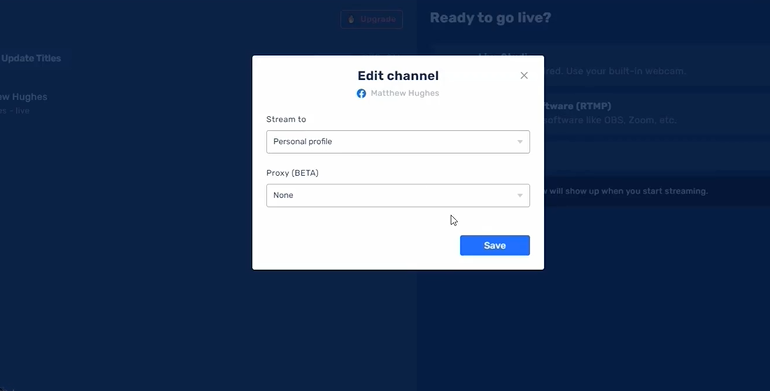
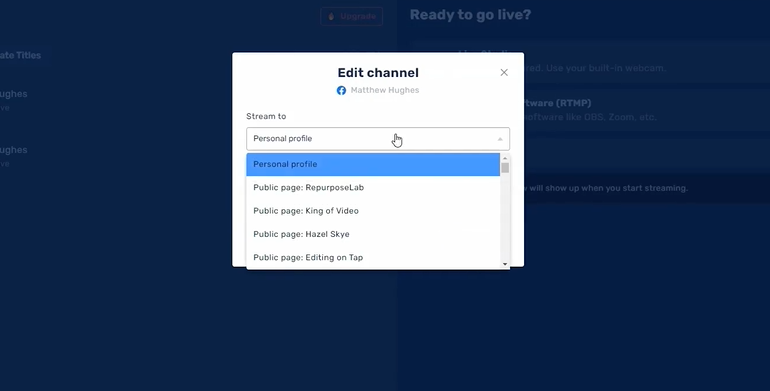
- Add your personal profile first.
- Click 'add channel' again and select Facebook.
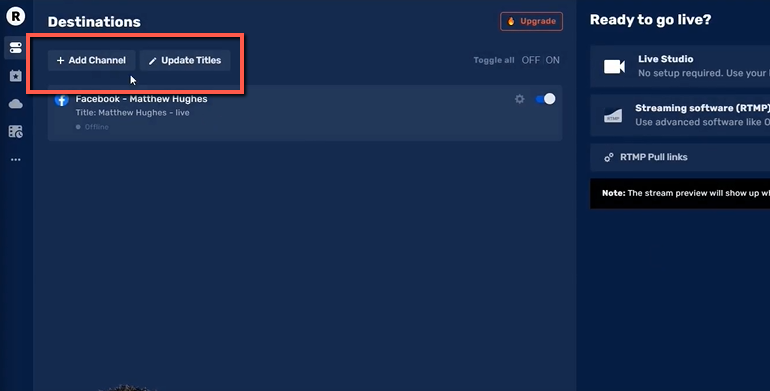
- Choose your Facebook page from the choices.
- Repeat Step no. 5 but select your Facebook group this time.
- Going Live on Your Page, Profile, and Groups.
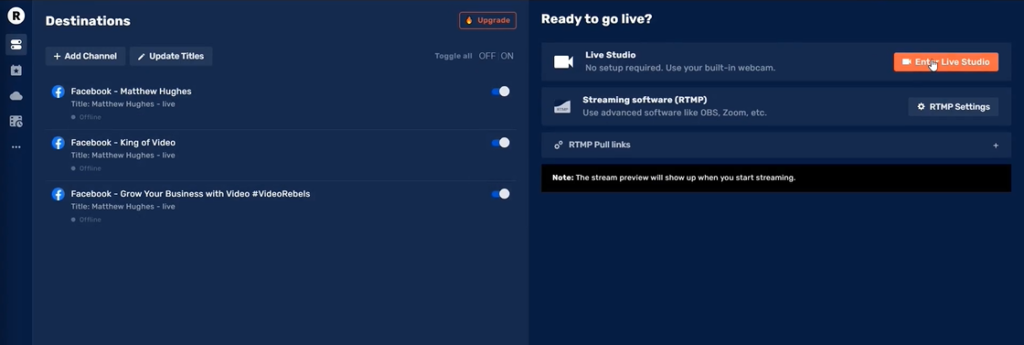
- Enter Live Studio from your dashboard.
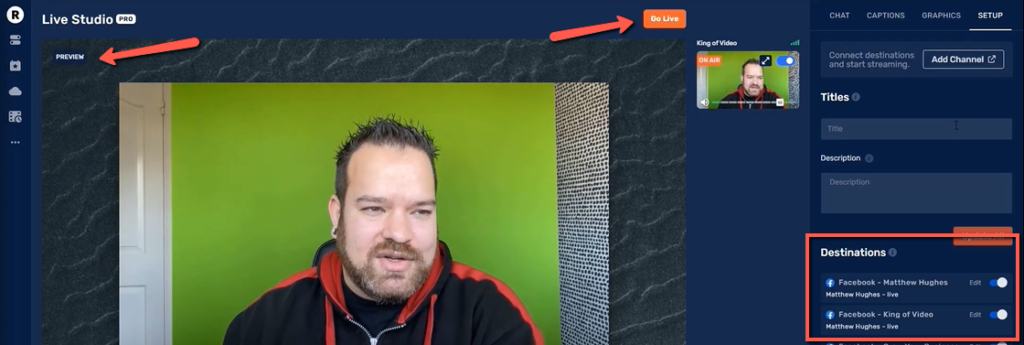
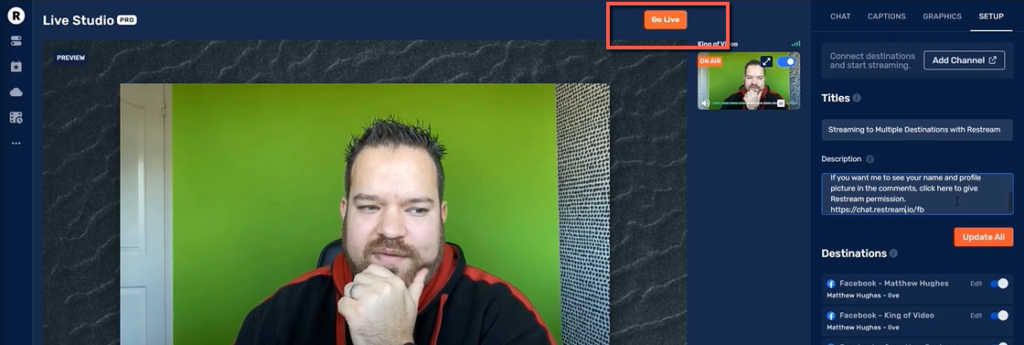
- Ensure that you see your preview window, the Go Live button, and the list of destinations where you want to go live.
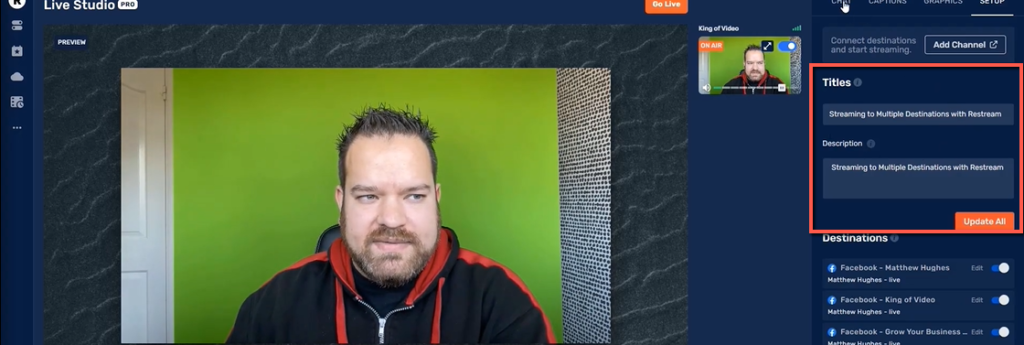
- Add Title and Description.
TIP: Your viewers’ names and profile pictures can appear on your stream. Just invite them to connect their Facebook to Restream with this link chat.restream.io/fb. One way to do this is to place the link on the description.
- Hit the Go Live button once you're ready.
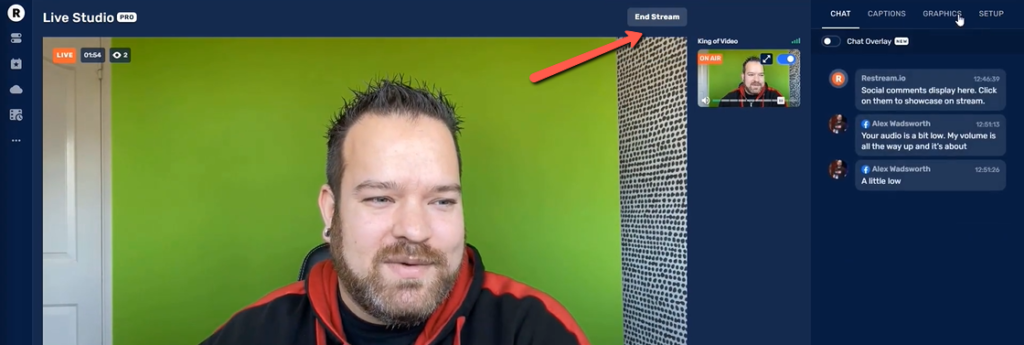
- Click End Stream to exit live.
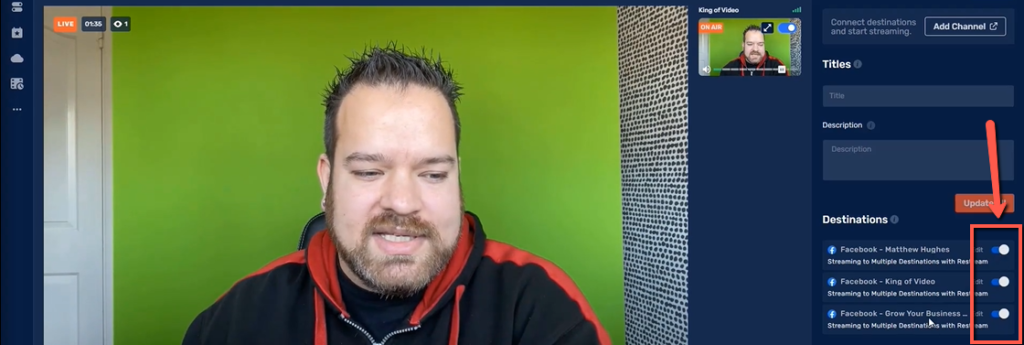
BONUS STEP: Turn toggles on and off if you want to exclude a destination.
Repurpose Your Live Stream
I'm all for repurposing your content. If you've watched my Clean Your Lens show, you'd know that I've talked about this a couple of times.
The idea here is you create one good piece of content, like a signature video. And you set a strategy on how to repurpose this one content into multiple pieces of content. If you want to learn more about it, enroll in my YouTube For Business. I offer a course specifically for content repurposing there, and I'm sure it can really help you.
Now, let's go back to repurposing your live stream. On a pro or paid Restream account, you get the option to download your live stream as video or audio. This is very simple to do:
- Click on download recordings after you end your stream.
- Download it as video, audio, or speaker-specific tracks.
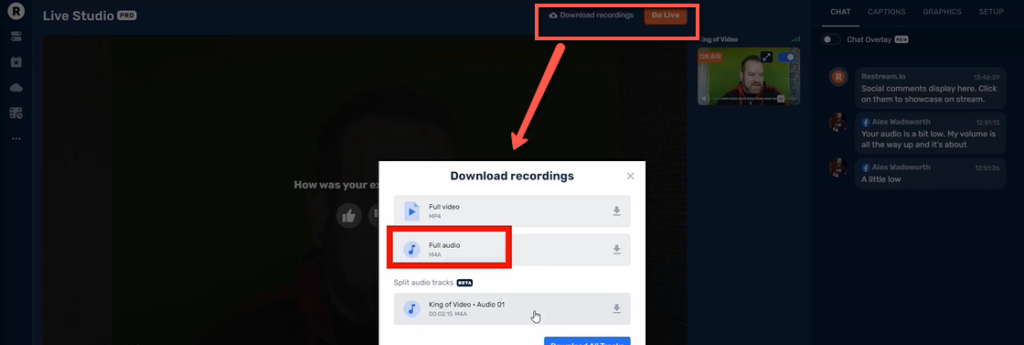
With a pro version, you can also store your recordings and access them whenever you need to.
FREEBIES AND PERKS
I'm ending this post with a list of all the freebies and perks that I mentioned. Check them out as soon as possible so you can enjoy them.
First off is my Restream affiliate link. If you haven't signed up to Restream yet, use this link to get up to $10 discount or credit.